1 Go to https://downloads.wymo.co.uk and download the AEM Agent for Mac.
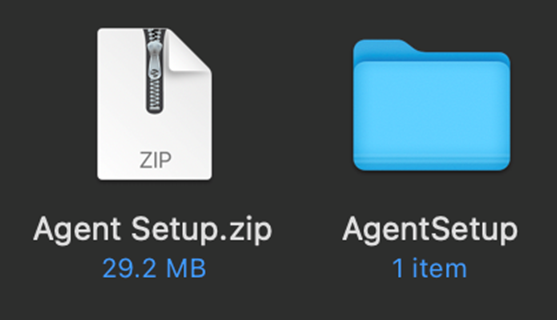
2 Once AgentSetup.zip has downloaded, open Finder and double click AgentSetup.zip and it will unzip into a folder titled AgentSetup.
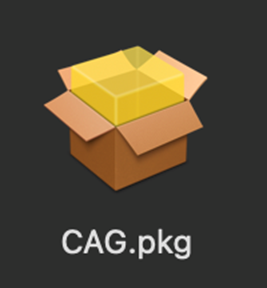
3 Within the AgentSetup folder there is a file titled CAG.pkg, double click this file to begin installation.
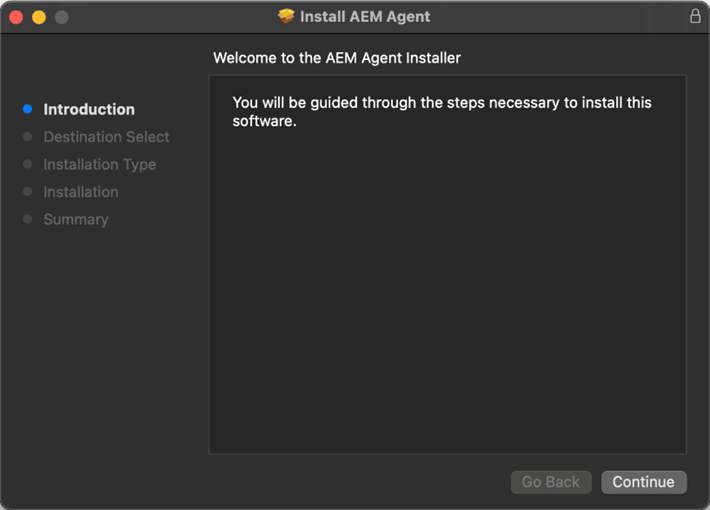
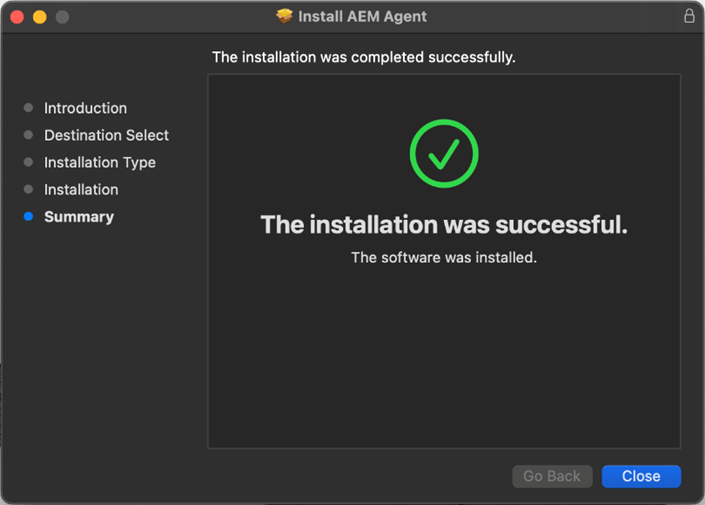
4 Follow the steps of installation until the installation has completed. This should take only a minute or two.
5 Once installation is complete, go to the Apple icon in the top left corner of the navigation bar at the top of the screen and select System Settings.
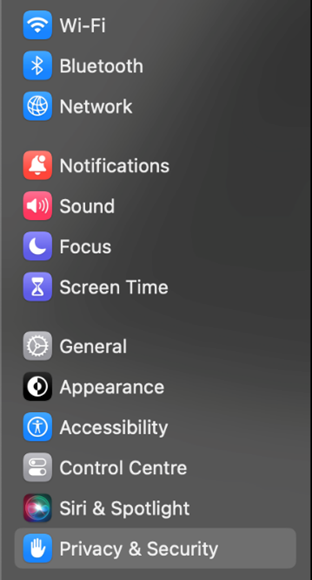
6 Go to the Privacy & Security section and look for an area titled Full Disk Access and click on it.
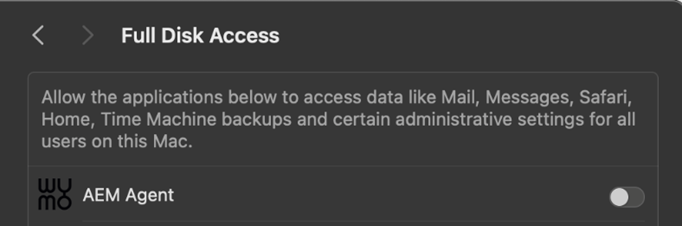
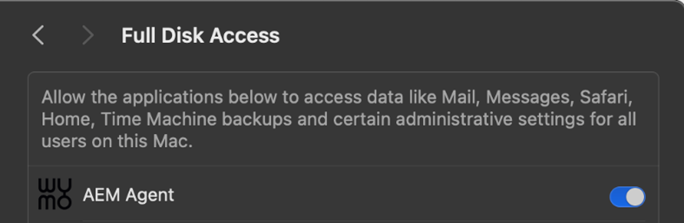
7 Enable AEM Agent in Full Disk Access.
8 Once complete, please contact us via support@wymo.co.uk and we will initiate the final steps of setup direct with you. We will need to connect with your device, which will prompt your device to ask you to provide permissions within Privacy & Security for Accessibility as well as Screen Recording.
There may be slight variances to these instructions depending on your version of MacOS. If you encounter any issues or have any questions regarding installation, please
Was this article helpful?
That’s Great!
Thank you for your feedback
Sorry! We couldn't be helpful
Thank you for your feedback
Feedback sent
We appreciate your effort and will try to fix the article