Cisco Meraki uses the integrated Windows client for VPN connection (no Cisco client at this time).
To be able to connect with simple AD user account credentials, along with a simple pre-shared key, the steps are very simple.
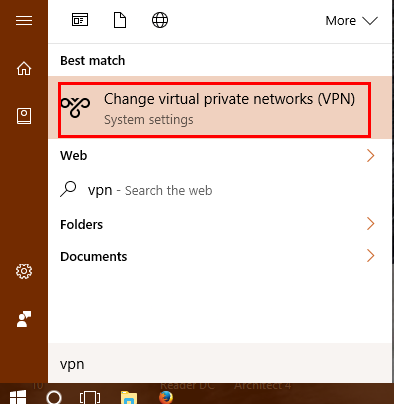
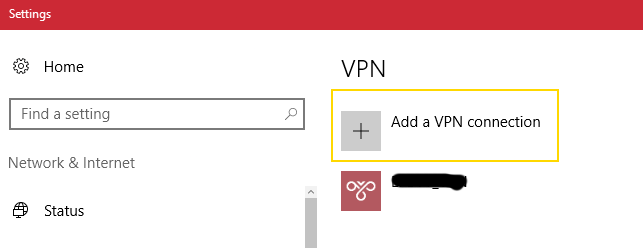
Step 3: Configure Windows connection

Pick VPN provider as Windows
Name the connection
Put in server name or IP
Switch VPN type to L2TP/IPsec with pre-shared key
Switch Type of sign in to User name and password
Enter the username and password if you want to save it, or leave blank and user will have to enter it on connection
Hit Save
Step 4: Edit settings

Once you hit Save, it will bring you back to the connection page
Click on Change Adapter Options
Step 5: Configure adapter

In the adapter window, click on the adapter with the name you created in the VPN window
Click on Change settings of this connection
Step 6: Step 6
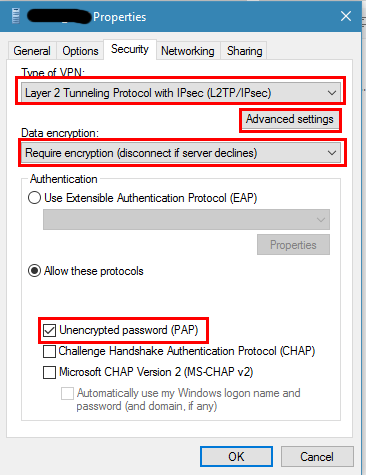
Click on Security tab
Make sure Type of VPN is still Layer 2 Tunneling Protocol with IPsec
Set Data encryption to Require encryption (disconnect if server declines)
Set Allow these protocols
Check Unencrypted password (PAP) - will still be, so don’t worry
Click Advanced settings
Step 7: Add key
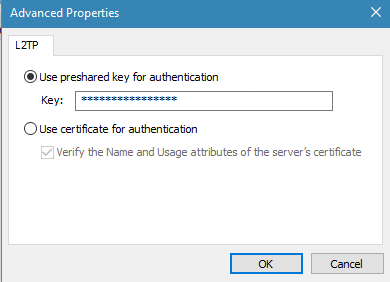
In the Advanced settings, click on Use preshared key
Type in the key you want to use
Hit OK to go back to the adapter settings
Click OK to close the adapter settings and save.
Close all other windows at this point.
Step 8: Connect
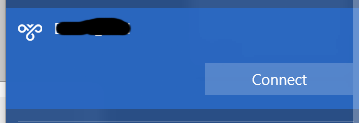
Connect …
Click on the network icon in the system tray
Click on the VPN network connection name
Click on Connect
Step 9: Verify and disconnect
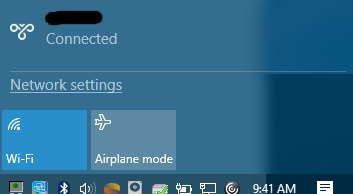
Verify you are connected
Click on the network system tray icon again if the window closed or minimized
You should now see the VPN network name listed and Connected underneath it
(If you are done with your connection, click on it and click Disconnect)
Now and then Windows Updates breaks the encryption settings by changing from PAP to MS-CHAP. If users could connect before, but suddenly can’t while others can, revisit Step# 6 and verify PAP is turned on, not MS-CHAP. Save and all set!
Was this article helpful?
That’s Great!
Thank you for your feedback
Sorry! We couldn't be helpful
Thank you for your feedback
Feedback sent
We appreciate your effort and will try to fix the article