Emails that have been marked as malicious such as phishing attempts or that contain malware will be quarantined inside the Check Point email security portal.
Sometimes emails may appear to be malicious but are in fact genuine and you need to retrieve them.
In this scenario you must release them from quarantine and is entirely self service.
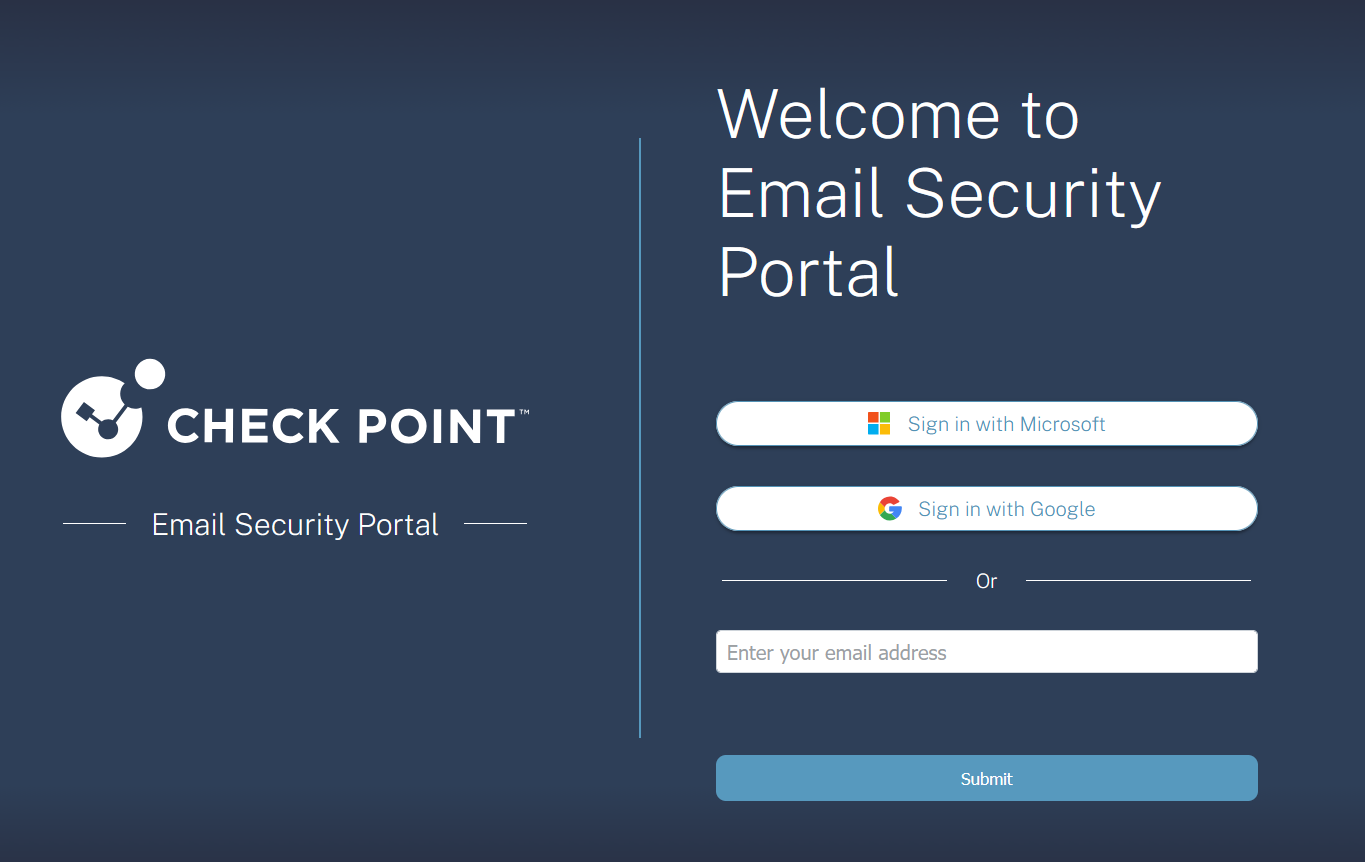
1. You can start this process by browsing to: https://euw2.email-security-portal.checkpoint.com/#/auth
To sign in with your Microsoft 365 account select 'Sign in with Microsoft'
This will then open a popup in your browser and guide you through the Microsoft 365 sign in process described here: https://helpdesk.wymo.co.uk/support/solutions/articles/205000045586-how-to-sign-in-to-microsoft-365-for-the-first-time
To sign in with your Google account select 'Sign in with Google'
This will then open a popup in your browser and guide you through the Google sign in process
2. Once you have successfully signed in you will be presented with the following Summary page.
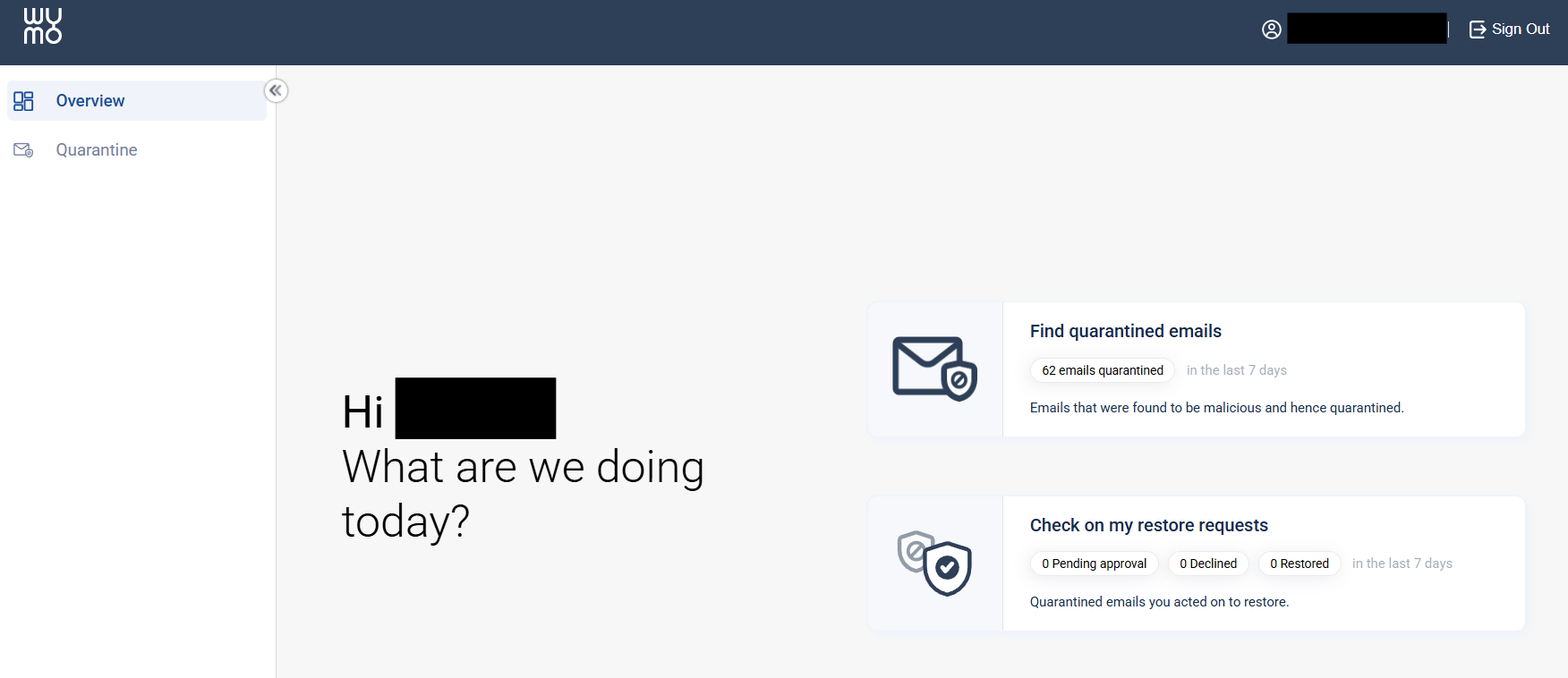
3. To view your quarantined emails please select 'Find Quarantined Emails'

4. You will be presented with all emails that have been quarantined. Clicking on the individual emails will enable you to view the contents safely to assess them as shown below.
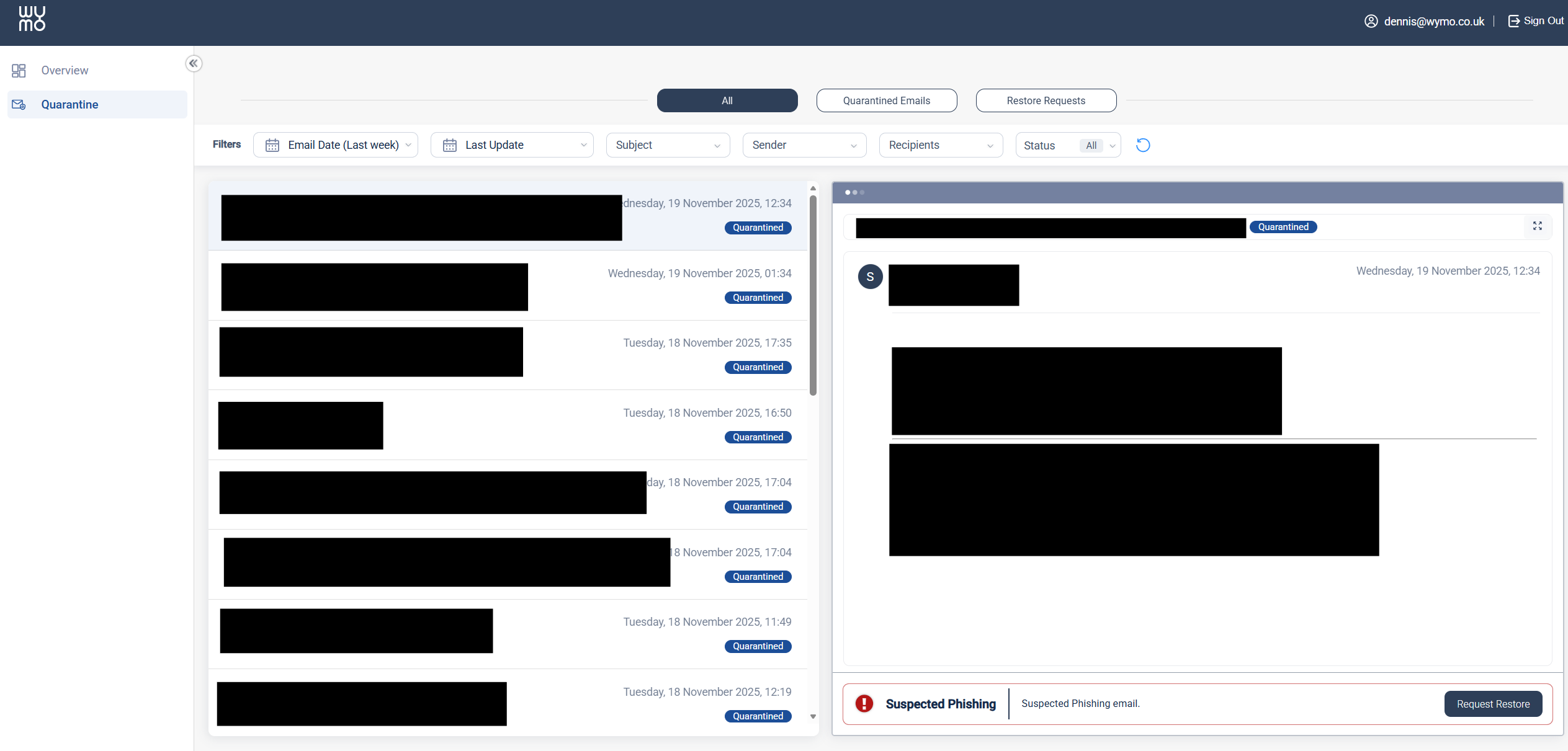
5.In the footer of the preview window it will present the reason the email was quarantined. In this example it was a 'Suspected Phishing' attempt.

6. To request to restore the email to your Email inbox select the 'Request Restore' button.
7. You will be prompted to enter a restore reason. Please fill this out with reasonable detail so we can be sure it is indeed genuine.
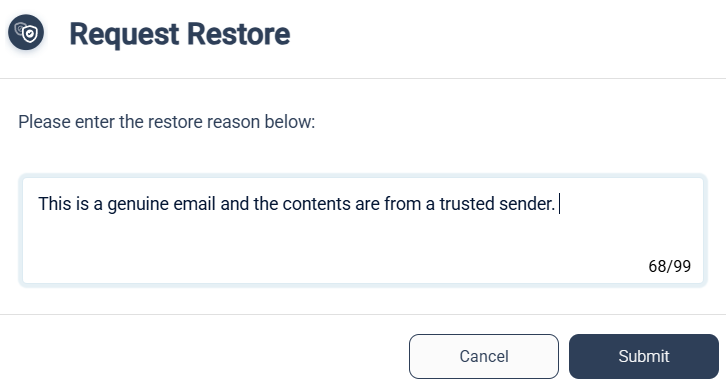
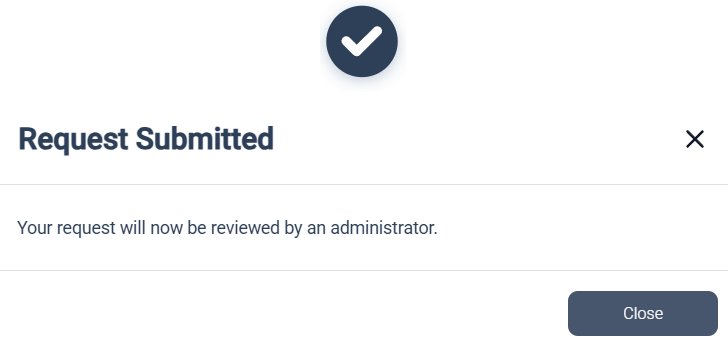
Depending on your organisation settings, this will either automatically restore the email to you, be verified by AIor come to our helpdesk to authorise the release.
Was this article helpful?
That’s Great!
Thank you for your feedback
Sorry! We couldn't be helpful
Thank you for your feedback
Feedback sent
We appreciate your effort and will try to fix the article