If your Microsoft 365 account for your company has just been created and you have not yet logged in, there are a small number of steps you need to take to setup and secure your account. Please follow the instructions below.
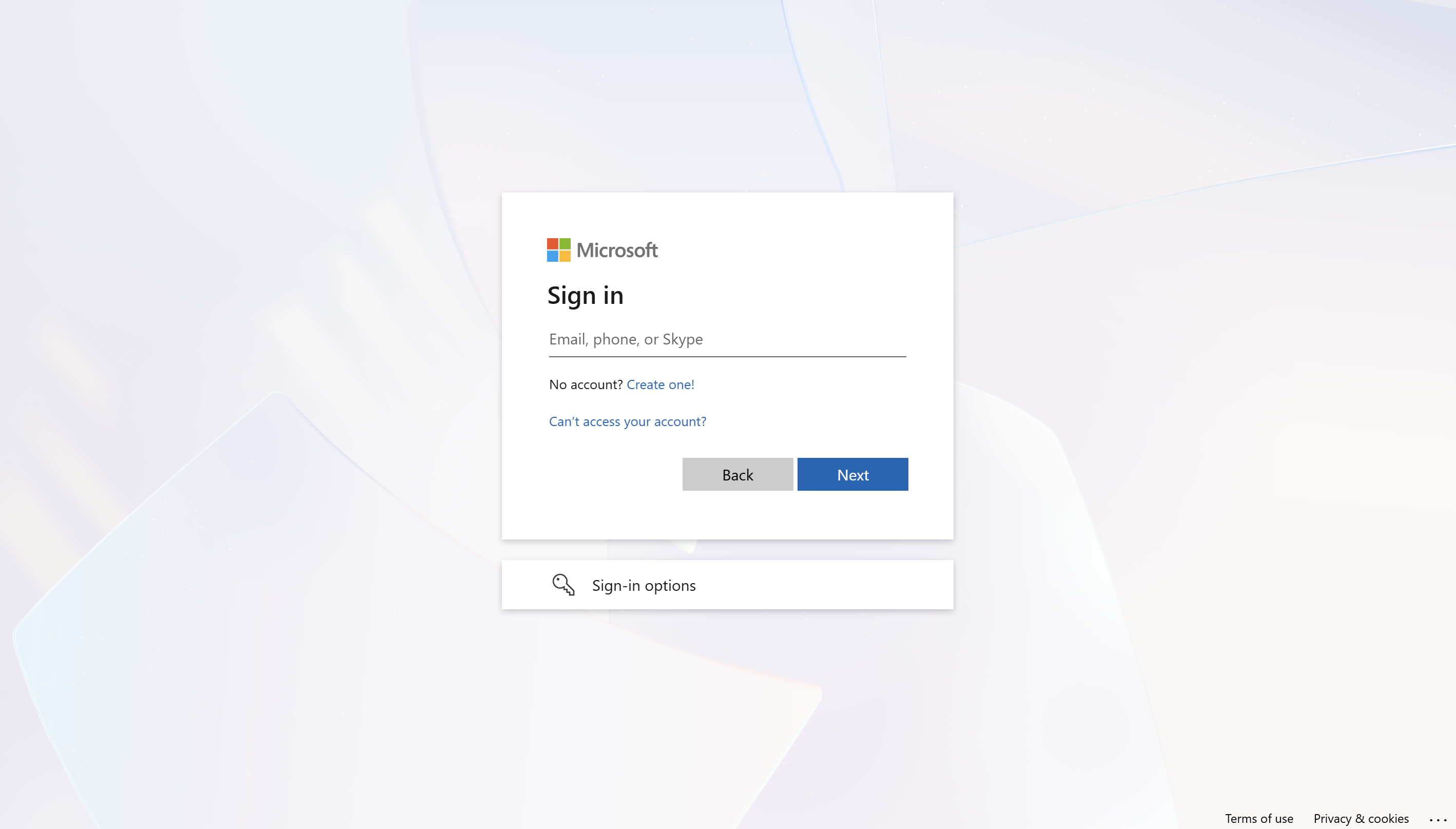
1. You will have been provided an email address and temporary password. Go to portal.office.com and sign in with these details.
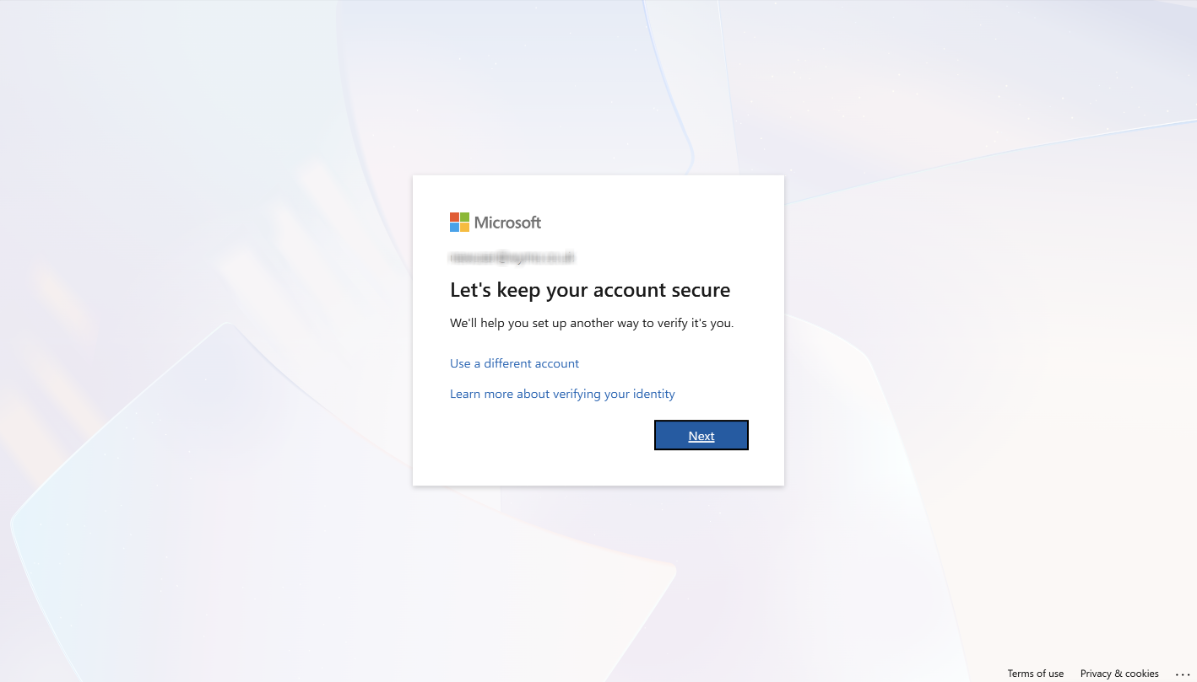
2. Once you've signed in for the first time, you will be prompted to keep your account secure. Press Next and you will be redirected.
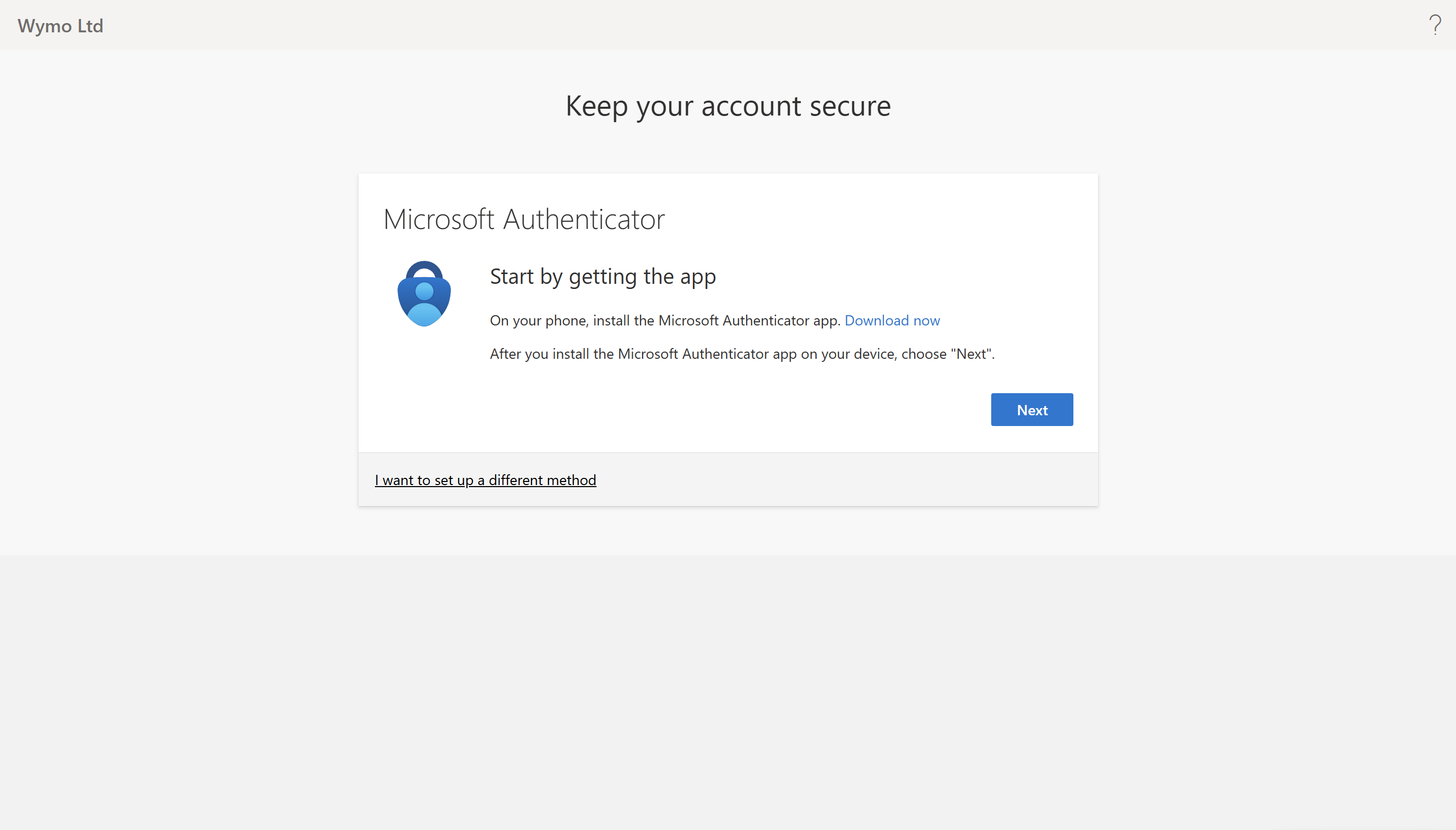
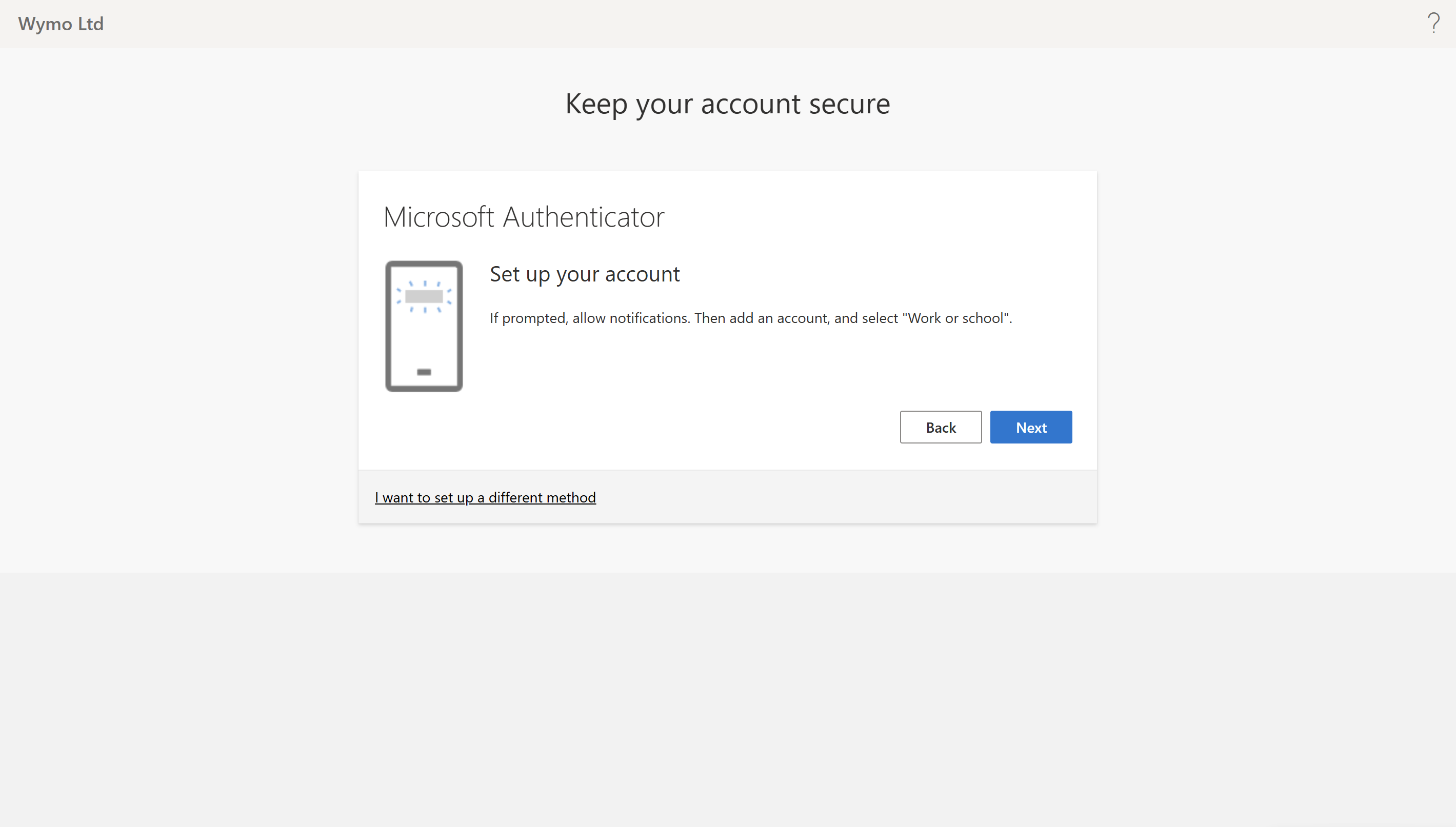
3. Follow the instructions in order to setup multi-factor authentication via Authenticator. Download the Microsoft Authenticator on your phone and press Next. This guide will continue to show how to setup Authenticator, however if you wish to setup verification via text message or a phone call instead, please press I want to set up a different method.
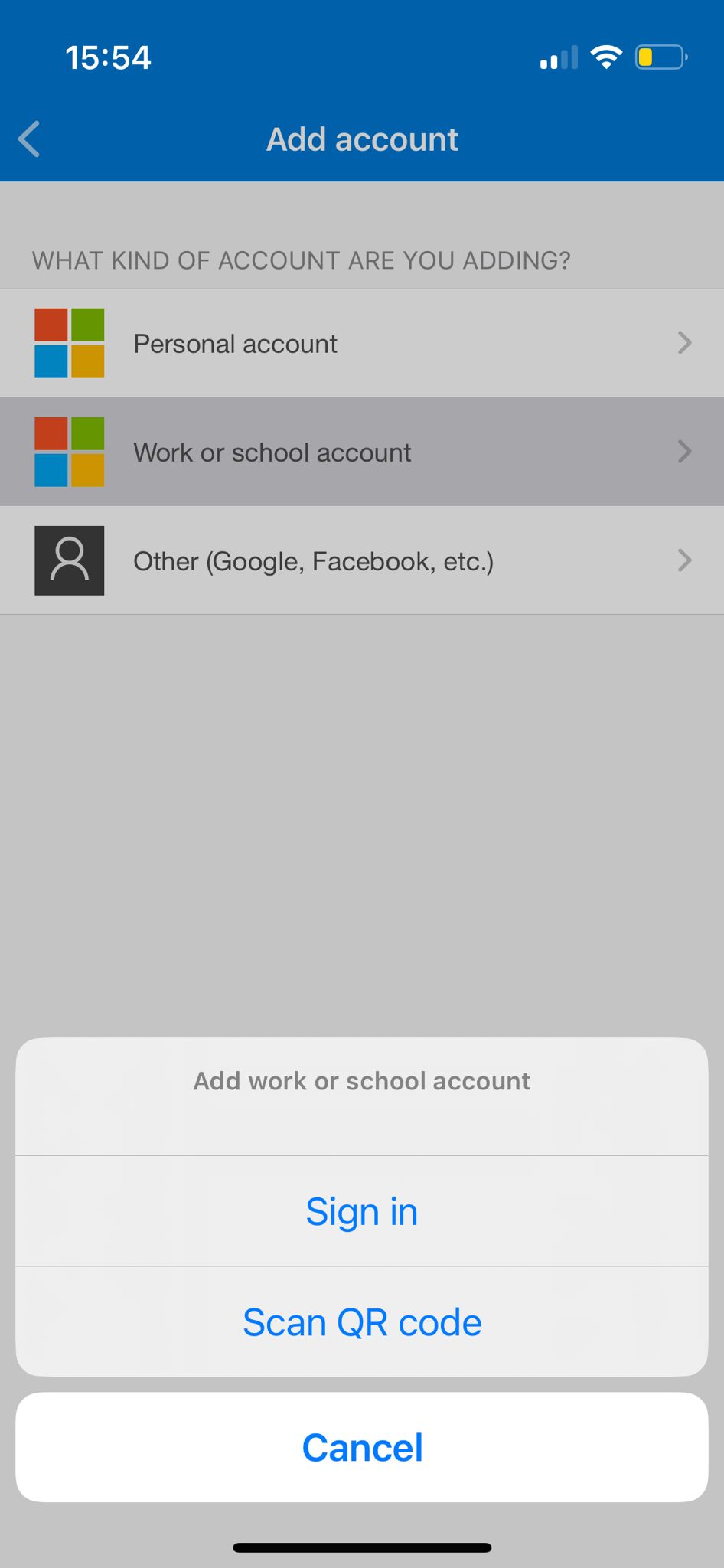
4. In Authenticator on your phone, please select the + icon and then Add work or school account and then Scan QR Code.
5. Press Next on this page.
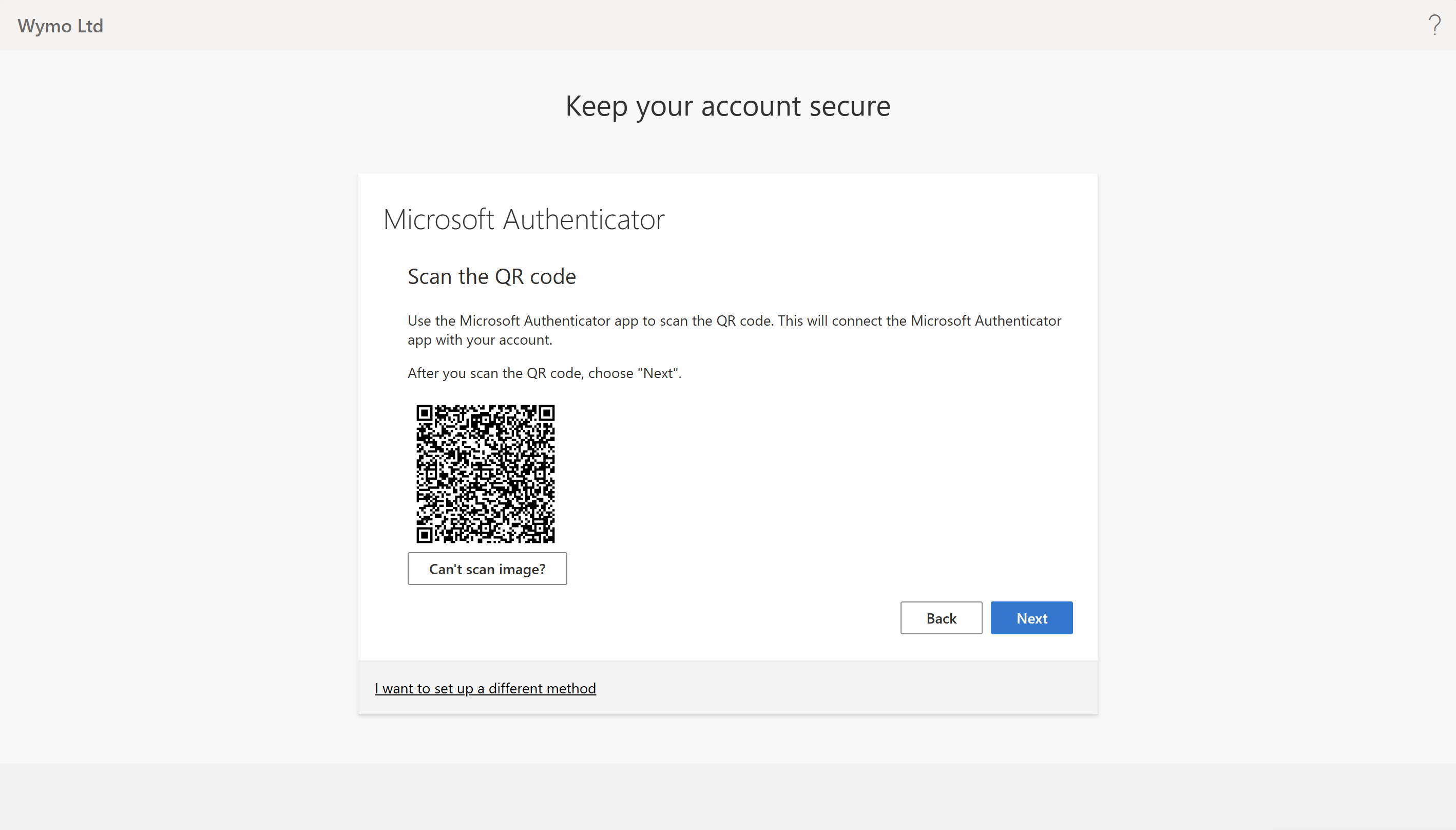
6. Scan the QR code with your phone. If this has worked correctly, you will now see a section for your new account within the Authenticator app on your phone which shows a 6 digit code that rotates every 30 seconds. Press Next on the page.
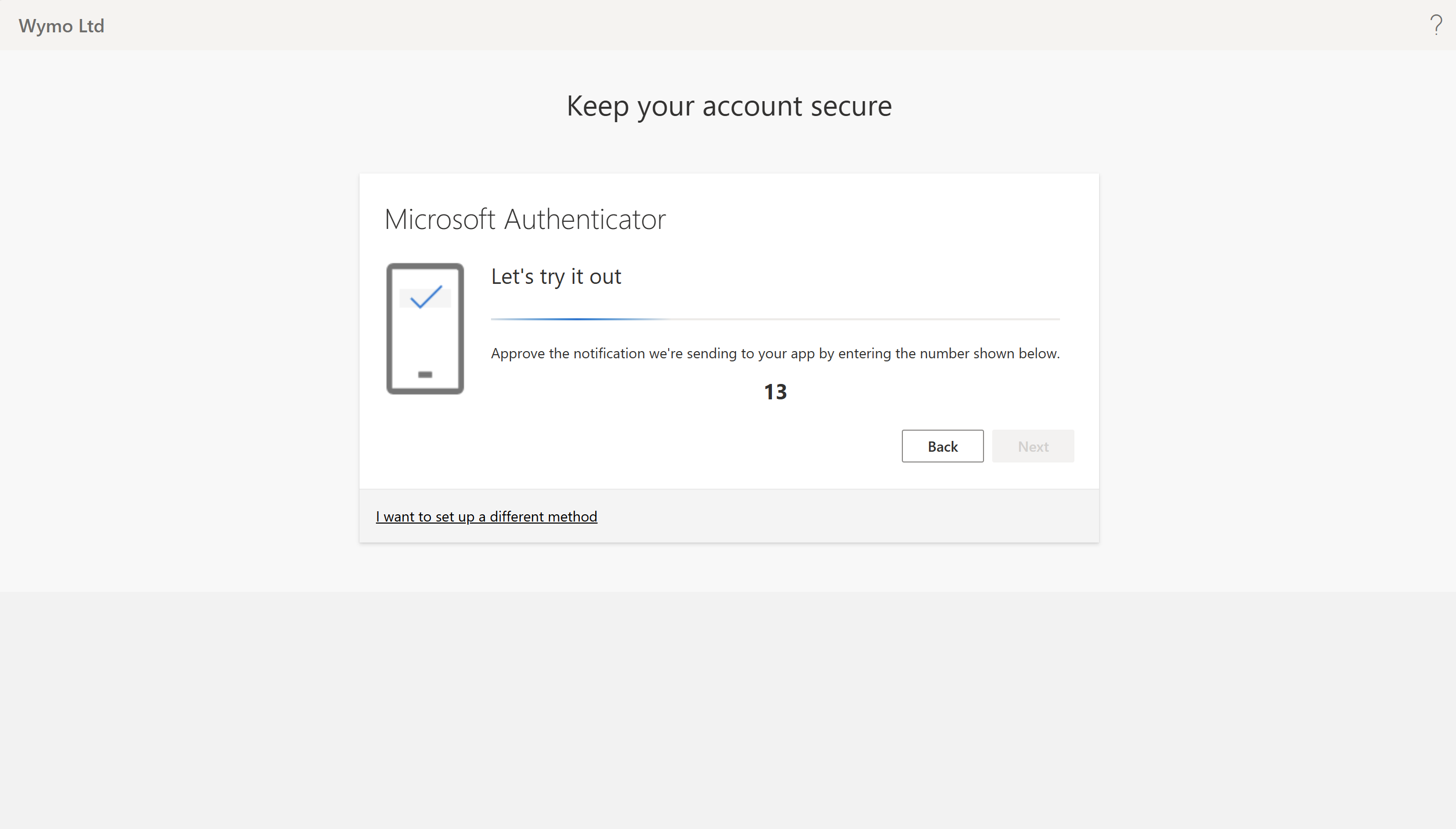
7. You will now be prompted to test Authenticator. You will receive a notification on your phone, prompting you to enter the number displayed on this page. In this example the number is 13. Input the number displayed on your phone in the Authenticator app.
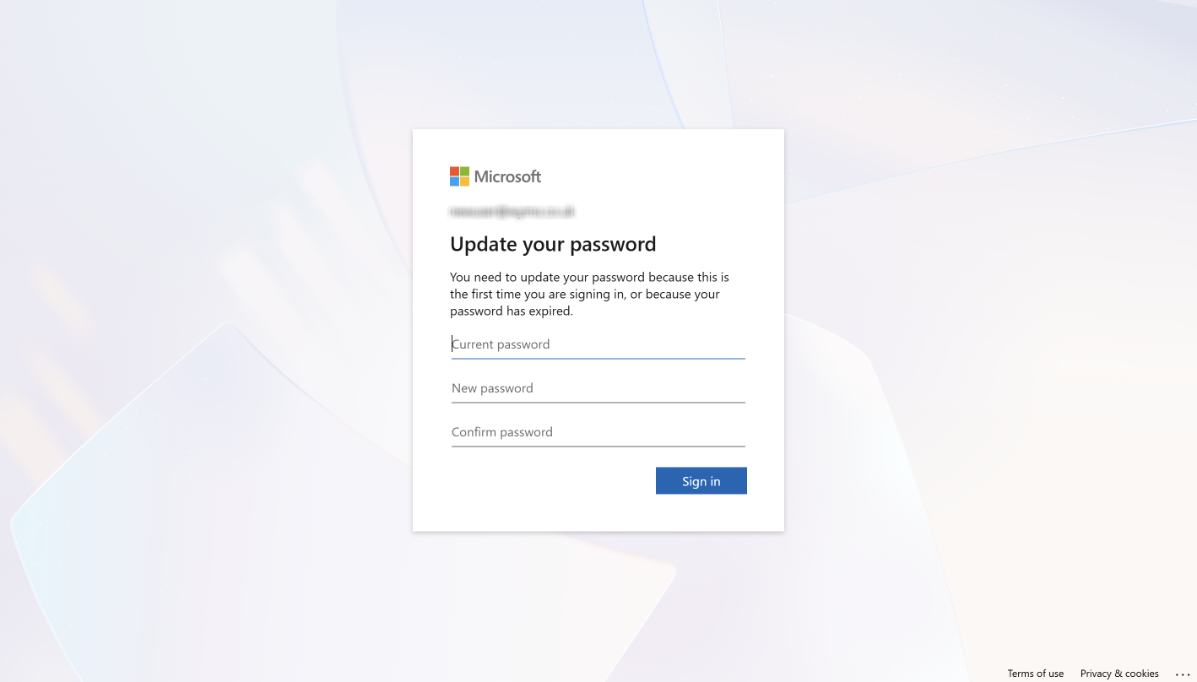
8. If this has been done successfully then your Authenticator app on your phone and your Microsoft 365 account have now been linked, and you will be redirected to change the temporary password of your account to a password of your choice. Please enter your current temporary password and then set a new password and Sign in.
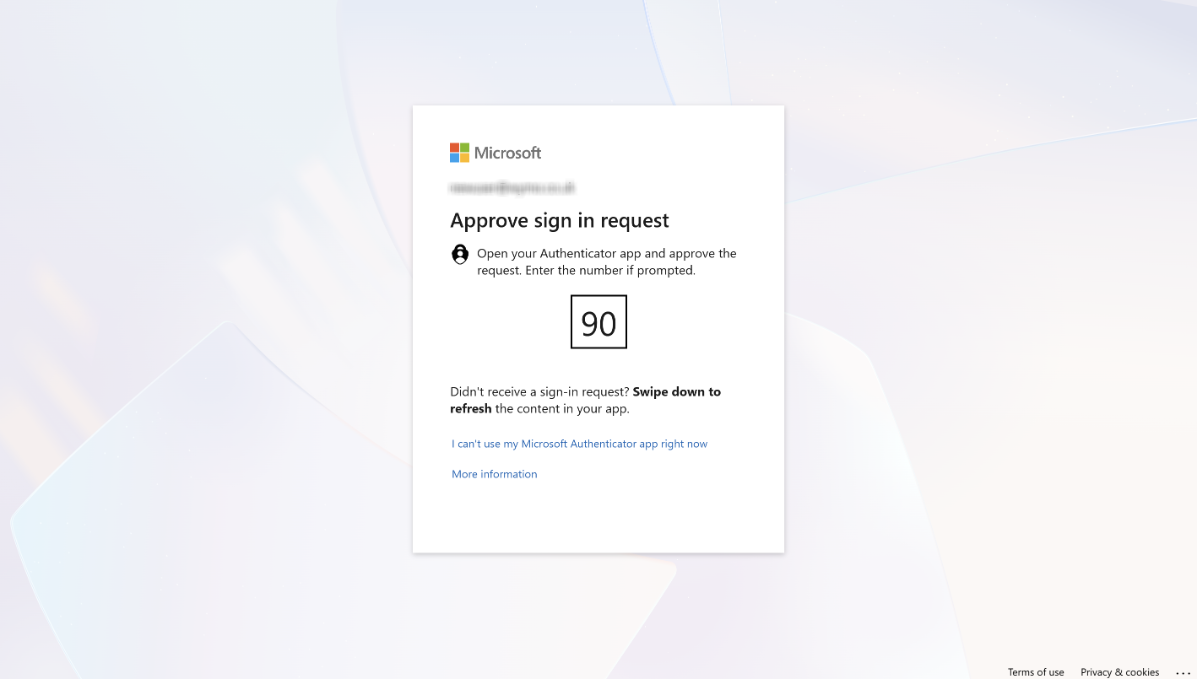
9. You will be prompted to approve the sign in request with your Authenticator app. This sign in approval will need to be done each and every time you sign in to your Microsoft 365 account or sign into Microsoft 365 apps, in the interest of company internal security.
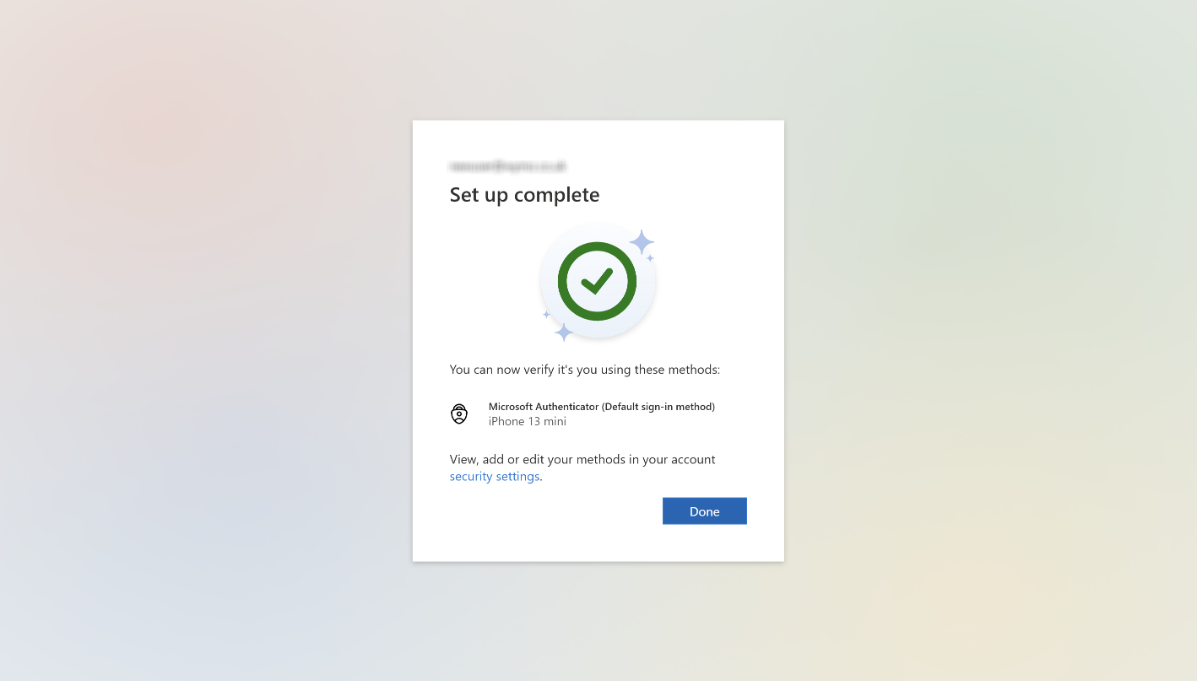
10. Once all of these steps are completed successfully, you will see this page. If you would like to add additional or alternative methods of authentication, you can do so by clicking the link to security settings. If you are happy with just using Authenticator, then press Done.
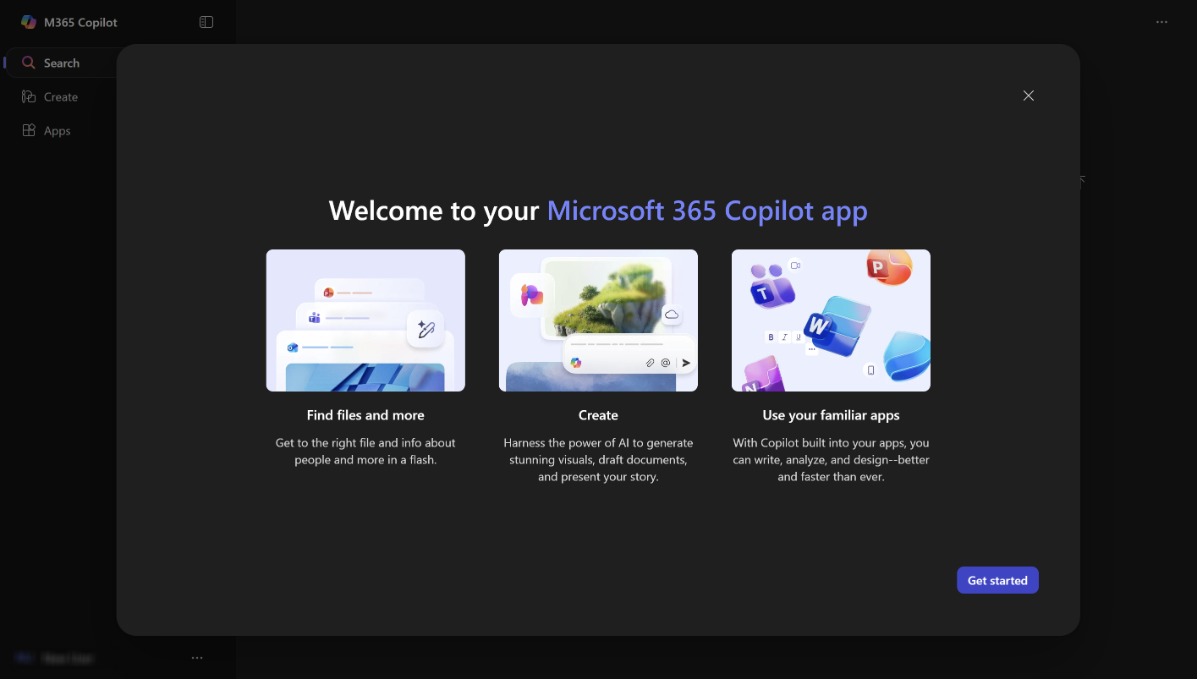
11. If you pressed Done, you will be redirected to the Microsoft 365 homepage, where you can then access or install your apps, administer your users or access Copilot. Setup is complete.
Was this article helpful?
That’s Great!
Thank you for your feedback
Sorry! We couldn't be helpful
Thank you for your feedback
Feedback sent
We appreciate your effort and will try to fix the article